
MTG Card Scanner Guide: scan faster and keep your collection accurate
By MTG Master EditorialPublished Updated 4 min read
The MTG Master Card Scanner lets you scan your real Magic: The Gathering cards using your phone camera, confirm the correct printing, and queue them in a session before adding them to your collection.
This guide walks through the full scanner flow: auto scanning, set filters, manual add using set code + collector number, and reviewing your scanned cards before adding them to your collection.
What the scanner does
- Detects a card in camera view and suggests the most likely printings.
- Shows a quick-add panel where you can adjust quantity, foil, language, and save timing.
- Keeps scanned cards in a session so you can review them all together.
- Lets you manually add cards using set code + collector number if the scanner cannot find the card.
Before you start scanning
- Use good lighting so the card is clearly visible.
- Avoid strong glare from lamps or windows.
- Keep only one card in view at a time.
- Make sure the entire card is inside the guide frame.
Tip: the clearer the set symbol and collector number area are, the easier it is for the scanner to identify the correct printing.
How to scan cards
- Open the scanner on your phone and allow camera access.
- Place the card inside the guide frame.
- Hold your phone steady for a moment while the scanner locks onto the card.
- Confirm the detected printing, or choose the correct one if several appear.
- Let the countdown save the card automatically, or tap save immediately.
Once you get the rhythm, scanning becomes very fast: place card, wait for the match, remove it, then move to the next one.
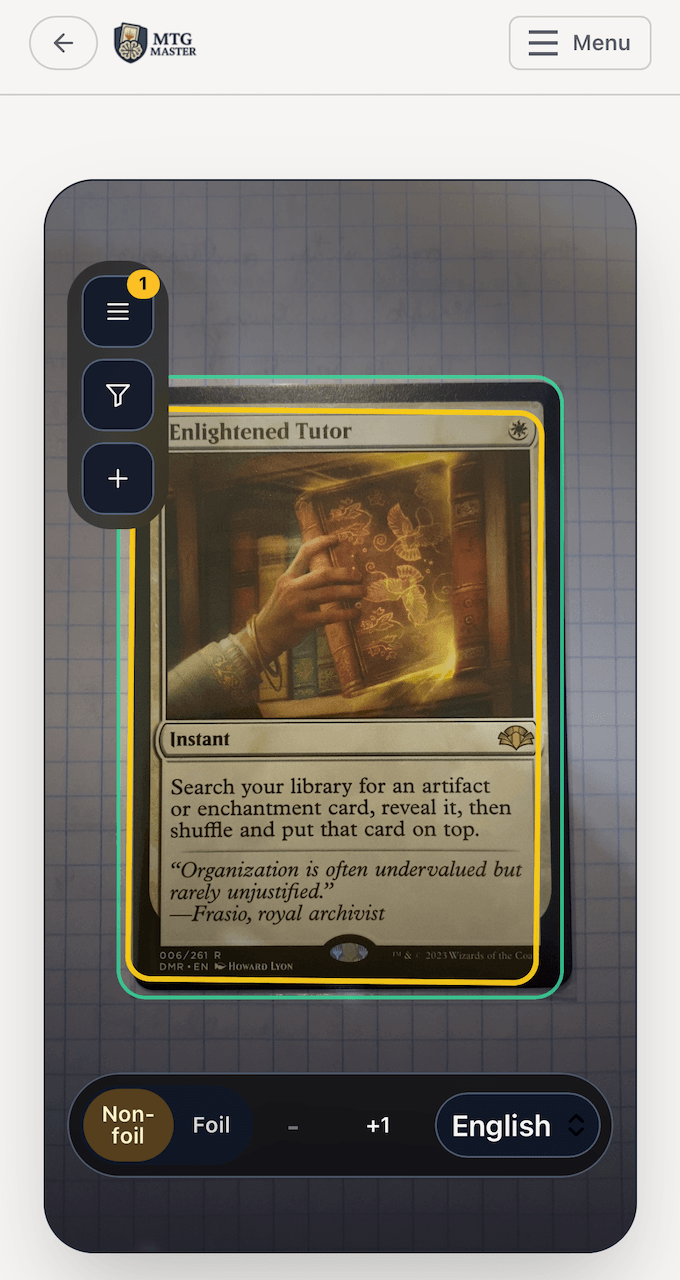
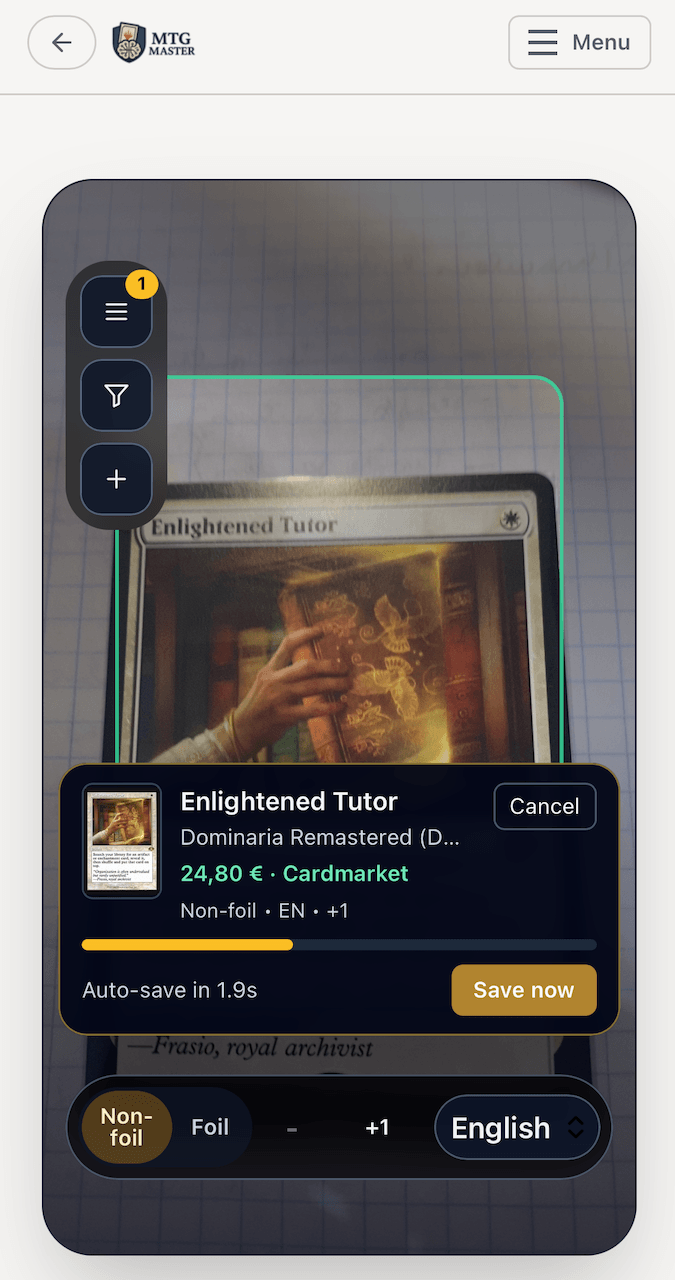
Scanner controls
- "Cards Scanned" opens your current scanner session.
- "Filters" limits scanning to selected sets.
- "+ (Add)" opens manual add so you can search by set code + collector number.
If you open manual add while a card is still counting down to save, the scanner will save that card first and then open the manual add window.
Where to find set code and collector number
In manual add (`+` button), use the fields highlighted below. Collector number is above the set code in the bottom-left area of the card.
 Collector numberSet code
Reference example: Angel of Invention (TDC 109).
When to use filters and manual add
- Use set filters when scanning a stack of cards from the same set.
- Filters help avoid wrong printings and make matching faster.
- If the scanner struggles to identify the card, use the `+` button.
- Manual add lets you search by set code and collector number to choose the exact printing.
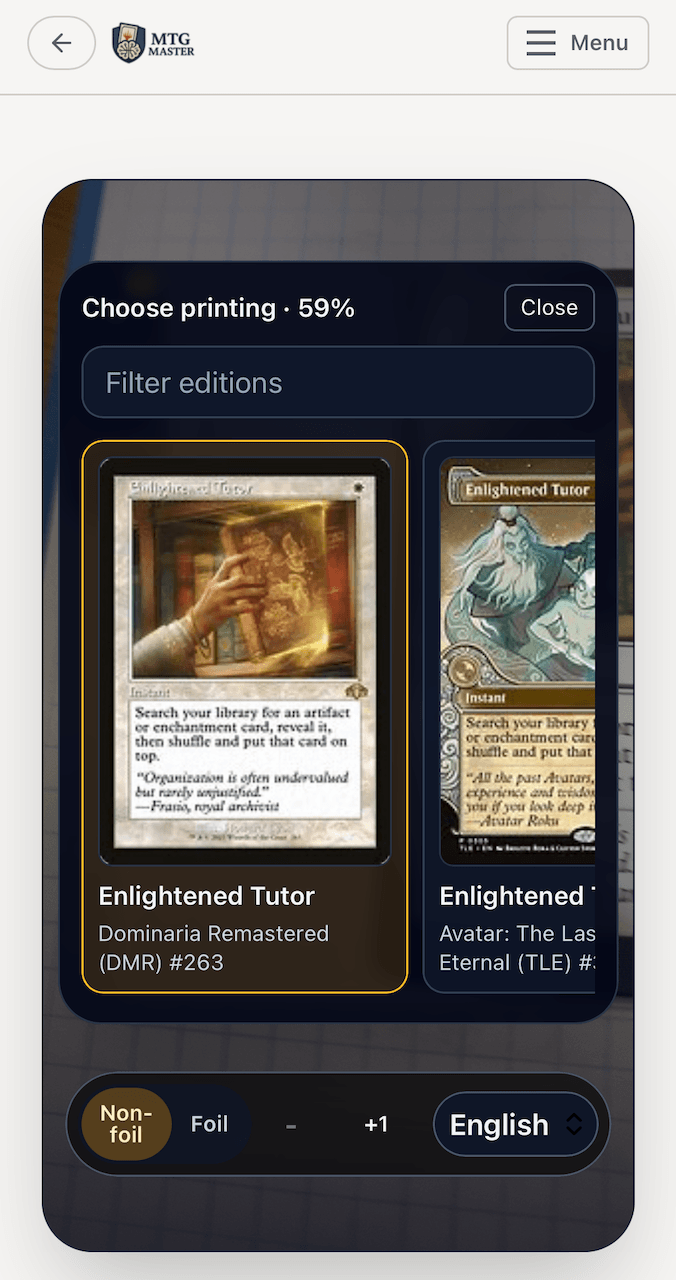
Scanner tips shown on screen
- "Place a card inside the frame" means the scanner cannot clearly see a card yet.
- "Center the card" means the card is visible but not fully inside the frame.
- "Hold still" usually means movement or blur is making recognition harder.
- "Reduce glare" means reflections are interfering with the scan.
- "Checking print..." means the scanner has detected the card and is identifying the printing.
- "Ready to save" means the card is recognized and ready to be added.
Recommended workflow when scanning many cards
- Scan several cards into your session.
- Open `Cards Scanned` and review everything together.
- Adjust quantity, foil, or language if needed.
- Remove any incorrect entries.
- When everything looks right, add the session cards to your collection.
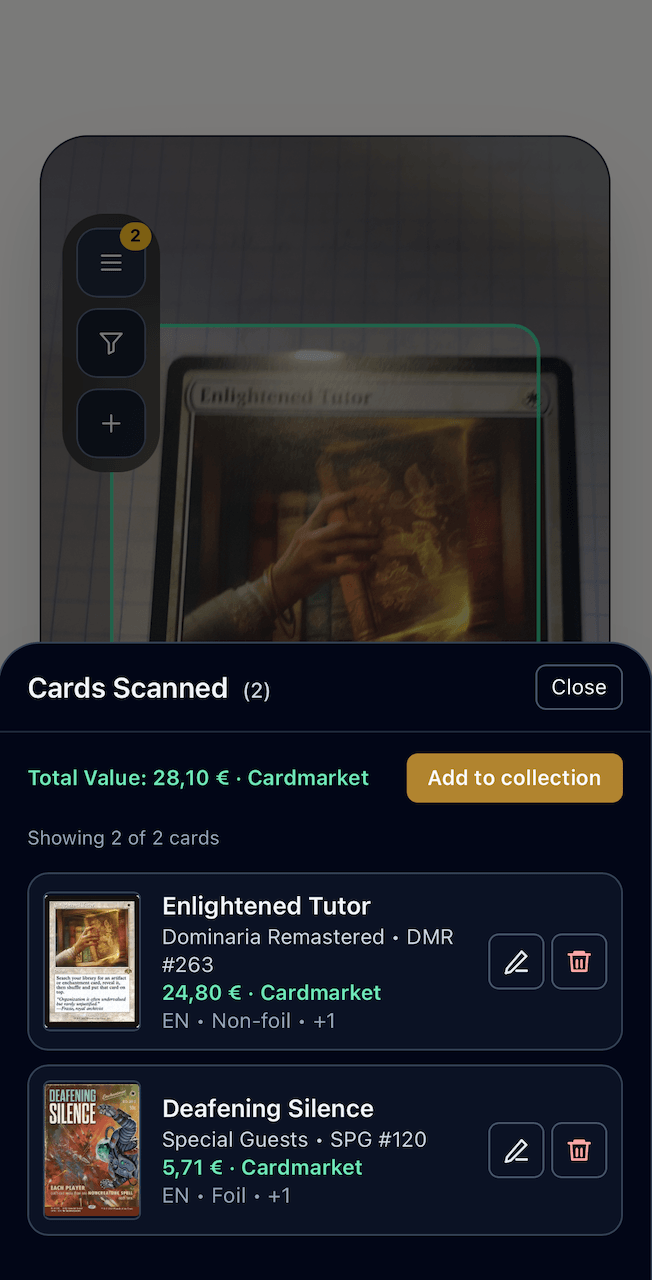
Common issues and fixes
- Wrong printing suggested: use set filters or switch to manual add.
- No match found: improve lighting, hold the phone steady, and try again.
- Blur or glare: reduce reflections and keep the card centered and flat.
- Unexpected saves: wait for the quick-save countdown to finish before scanning another card.